
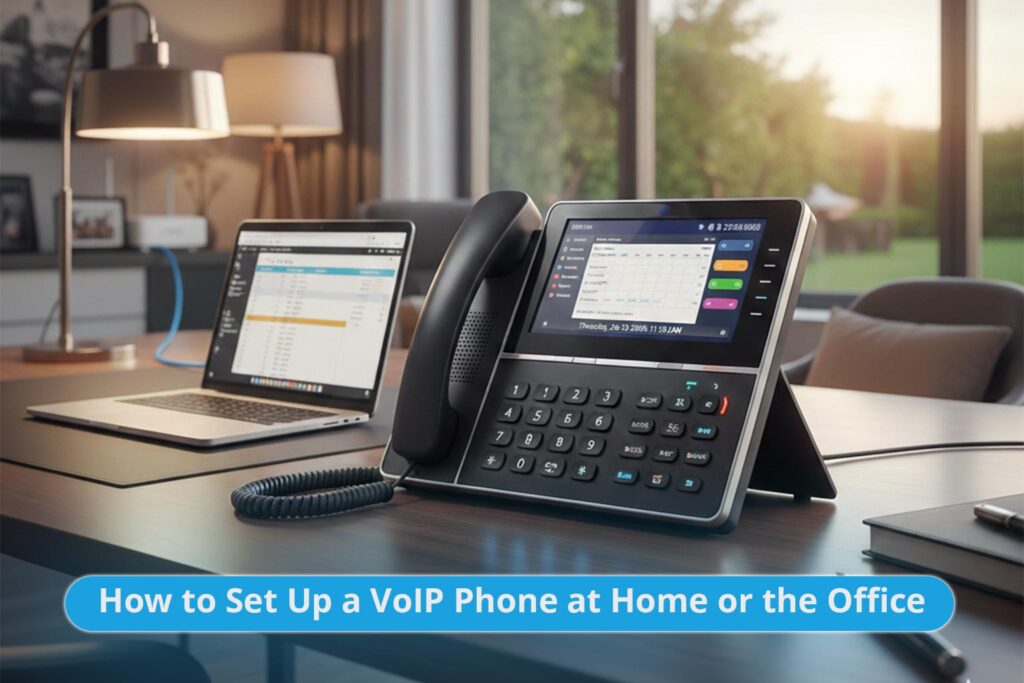
How to Set Up a VoIP Phone at Home or the Office (UK Guide)
Thinking about moving to VoIP but not sure where to start? This practical UK-focused guide walks you through the physical and digital setup steps with minimal jargon. You will learn what equipment you actually need, how to plug everything in, how to configure your SIP settings, and when it makes sense to let a managed provider handle the heavy lifting.
25 Years' UK Experience
Trusted by 1000+ UK Businesses
99.999% Uptime Guarantee
UK-Based Personal Support
What You Need Before You Start
Before unboxing phones and plugging in cables, specific basics must be in place. Getting these right initially is what separates crystal clear VoIP calls from glitchy, frustrating conversations.
Stable Broadband Connection:
For home/micro offices: Aim for at least 2–4 Mbps up and down per active call.
For busy offices: [Business grade fibre or a leased line] is strongly recommended.
Rule of thumb: Wherever possible, plug phones in via Ethernet rather than relying on WiFi.
VoIP Service Account:
You need a hosted account (like the Stride [Cloud Phone System]) and at least one user extension.
This includes your UK numbers, call routing logic, and a management dashboard.
Compatible Hardware:
IP Desk Phone: A dedicated handset that plugs straight into your router or switch (e.g., Yealink or Poly).
Analogue Telephone Adapter (ATA): Converts legacy analogue phones to work with VoIP.
Softphone: Use a laptop or mobile app instead of a physical phone.
SIP Credentials:
Username/Extension number.
SIP Password.
Server or “SIP Domain/Registrar” address.
Quick Checklist: Home vs. Office Setup Requirements
Setting up a single home office phone is vastly different from rolling out VoIP for a team of 10–50 staff. Stride Communications uses this comparison to determine infrastructure needs.
| Feature | Home / Micro Office (1–3 Users) | Small / Medium Office (4+ Users) Recommended |
|---|---|---|
| Broadband | Standard Fibre (FTTC/FTTP) | Leased Line or Business FTTP |
| Network Hardware | ISP-provided Router | Business Router with VLAN & QoS Support |
| Power | Mains Power Adapter | PoE (Power over Ethernet) Switch |
| Cabling | Direct patch lead to Router | Structured Cat6 Cabling |
| WiFi | Standard Mesh | Managed WiFi with Voice VLAN |
Step-by-Step: Setting Up a VoIP Phone at Home
This section details the typical setup for a remote worker or micro-business using a single IP handset.
Step 1: Check Your Internet and Router
Run a speed test to confirm sufficient bandwidth. Log into your router admin page and check for “SIP ALG” (Application Layer Gateway)—this setting often interferes with VoIP and should usually be disabled. If your router has “QoS” (Quality of Service) settings, enable them to prioritise voice traffic.
Deep Dive: For a full technical breakdown, read our guide on How to Setup a VoIP Optimized Router.
Step 2: Connect the Hardware
For an IP Desk Phone:
Plug one end of an Ethernet cable into your router.
Plug the other end into the “LAN” or “Internet” port on the phone base.
Connect the power adapter (unless you are using a PoE injector).
For an ATA (Analogue Adapter):
Plug the ATA into the mains power.
Connect the ATA to your router via Ethernet.
Plug your standard analogue phone into the ATA’s “Phone 1” port.
Step 3: Register the Phone
Most modern phones will “Auto-Provision” if purchased pre-configured from Stride. If configuring manually:
Find the phone’s IP address (Menu → Status → Network).
Type that IP address into a web browser on a PC connected to the same network.
Log in (default admin/admin).
Navigate to Account or SIP Settings.
Enter the SIP Server, Port (usually 5060), User ID, and Password.
Click “Confirm” or “Register”.
Step 4: Configure & Test
Once the screen shows “Registered”:
Voicemail: Dial your voicemail pilot number to record a greeting.
Inbound Test: Call your VoIP number from a mobile to check ringing and Caller ID.
Outbound Test: Call a mobile to check for two-way audio clarity.
Step-by-Step: Setting Up VoIP Phones in a Small Office
For multi-user environments, the focus shifts from individual settings to network architecture.
Step 1: Network Readiness (VLANs and PoE)
Ensure your switch supports Power over Ethernet (PoE). This allows you to run a single cable to each desk for both data and power, reducing clutter. We strongly recommend configuring a Voice VLAN on your switch and router. This segregates voice traffic from general office data (like large downloads) to ensure Network Resilience & Security.
Step 2: Structured Cabling & Deployment
Run structured cabling (Cat5e or Cat6) from your comms cabinet to each workstation.
Connect the IP phone to the wall port.
If the user has a PC but only one wall port, use the phone’s “PC Port” to daisy-chain the computer (Phone → Wall, PC → Phone).
If you are retaining a legacy PBX, you may need to connect via SIP Trunking rather than replacing all handsets.
Step 3: Centralised User Creation
Instead of configuring phones individually, use your [Hosted PBX Portal]:
Create User Profiles (Name, Extension, Email).
Choose your platform: Assign a standard desk phone, or provision a user for the Microsoft Teams Phone System or the managed 3CX Phone System.
Assign MAC addresses to users (found on the back of the phone).
Reboot all phones; they will download the config file automatically (Auto-Provisioning).
Step 4: Build Call Flows
Design the logic for how calls move through the office:
Main Greeting: “Welcome to [Company Name], press 1 for Sales…”
Ring Groups: Ring all “Sales” phones simultaneously.
Time Conditions: Automatically divert to voicemail after 17:30.
Stride Insight: The Network Readiness Scorecard
Setting up the phone is easy; ensuring consistent quality is the challenge. Stride Communications applies a Network Readiness Scorecard to every deployment. We specifically look for “Jitter” (variance in signal timing).
If your network jitter exceeds 30ms, users will experience robotic voice or dropouts. Before a full office rollout, we recommend running a continuous ping test for 24 hours to identify latency spikes that standard speed tests miss. This “Governance Baseline” ensures your LAN is truly VoIP-ready.
Common VoIP Setup Problems & Quick Fixes
No Dial Tone / "Not Registered"
Check: Is the Ethernet cable clicked in fully?
Verify: Are the SIP credentials correct? (Watch for whitespace in passwords).
Action: Reboot the router first, then the phone.
One-Way Audio (Can hear but can't speak)
Cause: This is almost always a NAT/Firewall issue.
Fix: Disable “SIP ALG” in your router settings. If the issue persists, use a STUN server address provided by your host
Choppy or Robotic Voice
Cause: Packet loss or bandwidth saturation.
Fix: Switch from WiFi to a wired connection immediately. Check if a colleague is downloading large files. Implement QoS rules on the router.
FAQs About Setting Up VoIP in the UK
Do I need special broadband for VoIP?
Not always, but you do need a stable, low‑latency connection. For home workers or very small teams, good‑quality fibre broadband is often enough. For busier offices or call‑heavy environments, business‑grade connections with SLAs are strongly recommended.
Can I keep my existing landline numbers?
Yes. In most cases you can port your existing geographic and non‑geographic numbers to a VoIP provider, so your customers keep dialling the same number and never notice the change.
What happens if my internet goes down?
A properly configured VoIP setup should have fail‑safes. Common options include automatic call forwarding to mobiles, 4G/5G backup connectivity, and voicemail to email so you never completely lose contact.
Can I set up VoIP myself?
If you’re confident with basic networking, you can absolutely set up a single home or home‑office phone yourself using this guide. For multi‑user offices, it’s usually better to involve a specialist so your network, call flows and security are correctly designed from day one.
1000+ UK businesses trust Stride | 5/5 average rating | 98% first-contact resolution
What Our VoIP Setup & Support Customers Say
When to Let Stride Handle It
You can follow this guide to get a single phone working. However, if you would rather avoid trial and error and ensure enterprise-grade reliability, Stride Communications can manage the entire lifecycle—as proven in our recent Case Studies.
Our Managed Setup Includes:
Supply and pre-configuration of [VoIP Handsets].
Installation of [VoIP-Optimised Routers] and PoE Switches.
Full [PSTN Switch-Off] compliance audits.
Professional recording of IVR greetings and menus.
On-site staff training and “Go-Live” support.
Claim Your Free VoIP Trial, Quote & Expert Consultation
Discuss your requirements with our expert team during your free consultation. We’ll assess your connectivity, set up your free VoIP trial, and provide a detailed quote showing exactly how much you’ll save. Simply fill in your details below for your no-obligation trial and quotation, then click ‘Get My Quote’.